To remove it later, see Removing the Faes AR Virtual Camera.
Download the macOS installer (.dmg) from the Download page, under Faes AR Virtual Camera only.
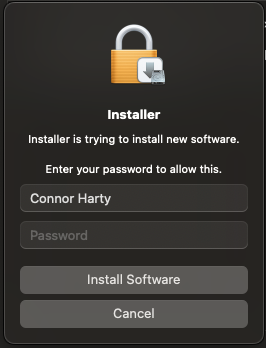
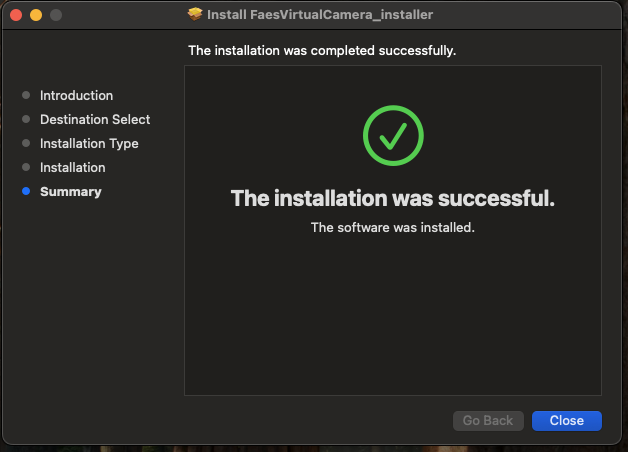
Double-click the downloaded package. You will be guided through the installation process. Choose the default values and enter your password when prompted.
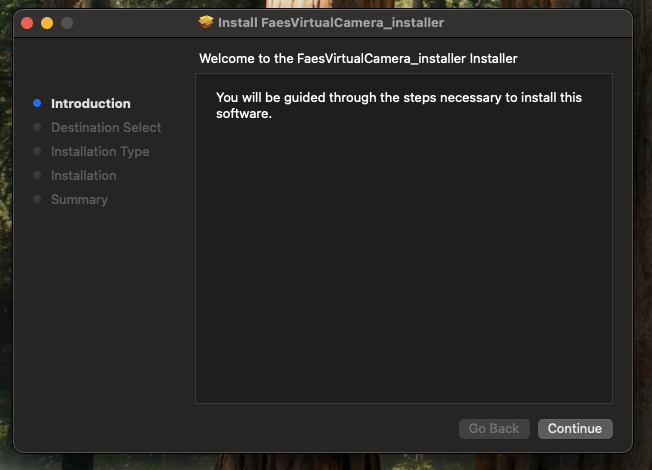
You should now see the following screen:
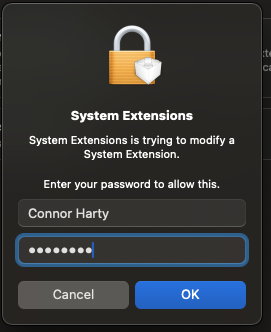
If prompted, enter your password to allow the system extension.
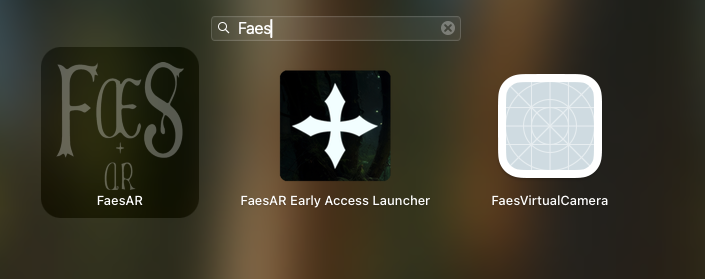
Run the Faes AR Virtual Camera for the first time from Launchpad. You can find it grouped with Games, or by typing “Faes” in the search bar. It is listed as FaesVirtualCamera.
When you run it for the first time, a window to install the system extension appears. It looks like this:
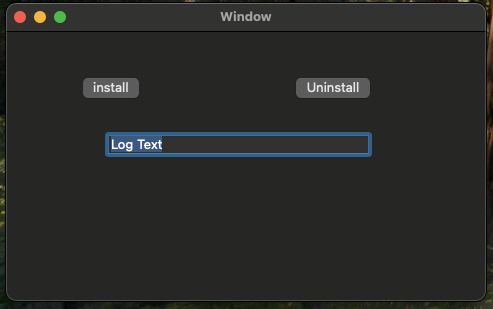
Click Install. You will be asked to allow the Faes AR Virtual Camera to use a new camera extension. This is necessary so the output of Faes AR is available as a camera in your video conferencing apps.
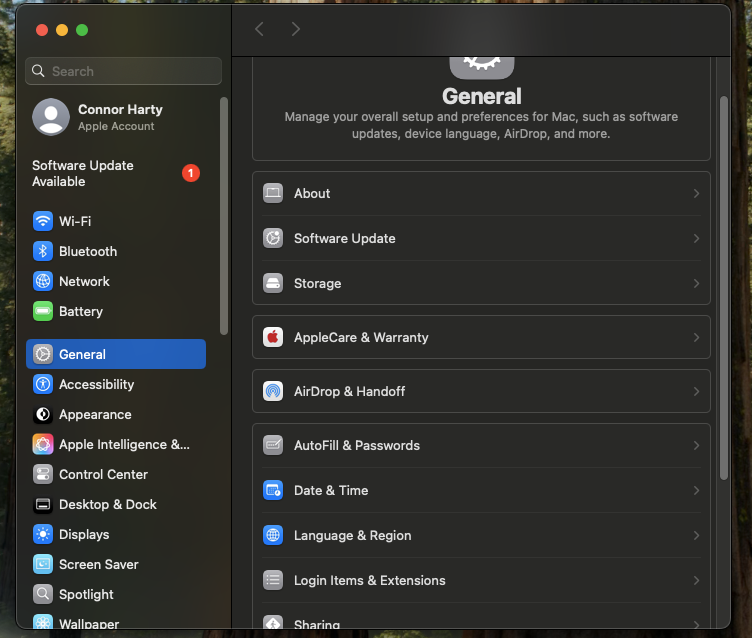
First click Open System Settings (not the blue OK button) to open the window where you give Faes AR permission to install the virtual camera extension.
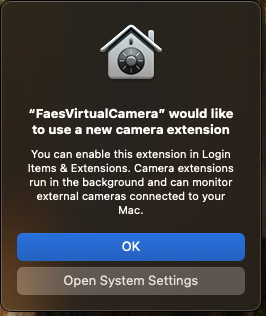
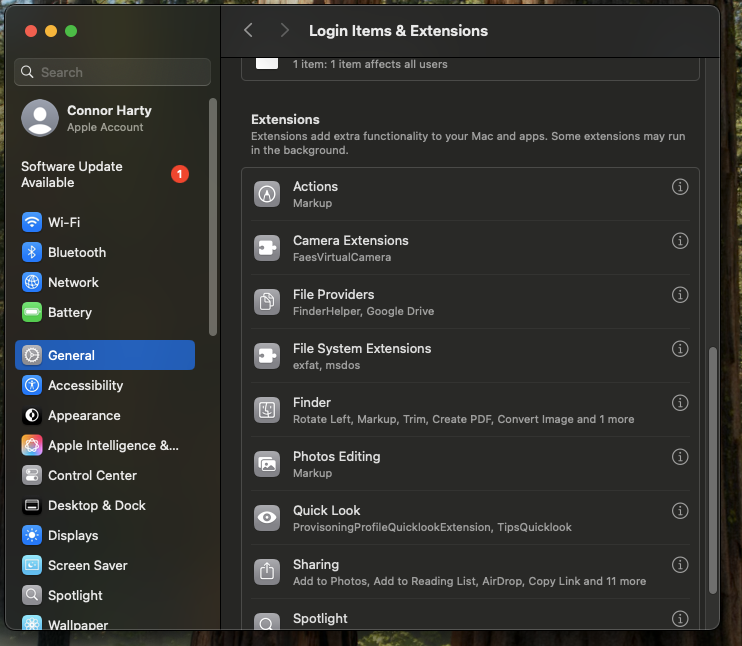
Next, click the toggle next to FaesVirtualCamera in the Camera Extensions panel, under Login Items & Extensions in System Settings.
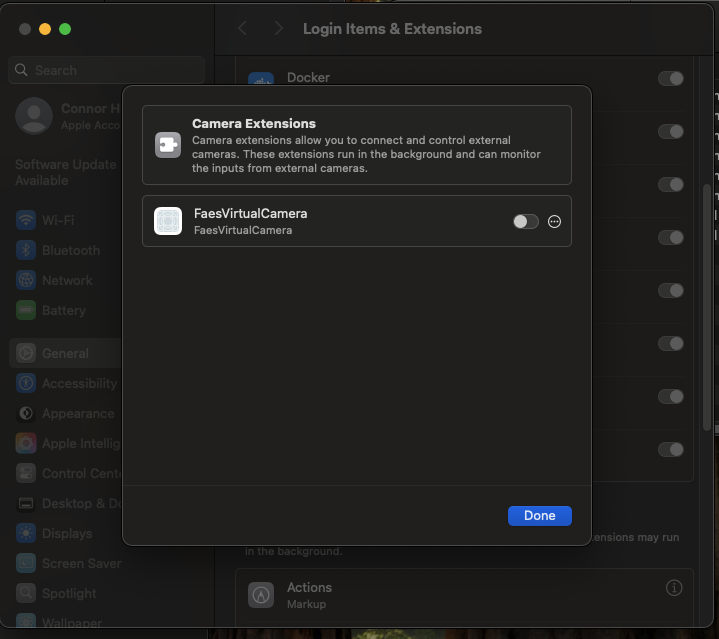
Enter your password, or use Touch ID when prompted. Your screen should now look like this:
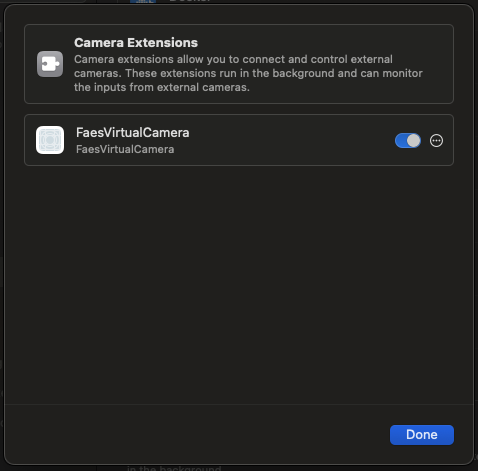
The Faes AR Virtual Camera should now be available in your video conferencing software. You may need to restart your browser or app to see it.
If you accidentally clicked OK instead of Open System Settings, you can still enable the camera. Open System Settings, go to General > Login Items & Extensions, and scroll down to Camera Extensions. Click the i in the circle next to FaesVirtualCamera to reach the toggle.